 zrsPOS
Put SAGE on the internet
zrsPOS runs in the cloud, so your SmartAPI must answer on a fixed public https address. What has to be true at the end, the steps for whoever runs your network, and a SAGE your partner hosts for you.
Your Sage 50c runs on your own network; zrsPOS runs in the cloud. To issue documents, the SmartAPI must answer from the internet. Your SAGE partner sets it up. Every "SAGE can't be reached" problem on Settings › SAGE connection opens this guided task with Show me how to put SAGE on the internet.
What must be true at the end
- The SmartAPI answers on a fixed public address: a static IP or a DDNS name that always points to your connection.
- The address starts with https and its certificate is valid: not self-signed, not expired, issued for that name.
- The address does not redirect elsewhere: the one you save is the one SAGE answers on.
- The access key is issued and kept private.
No firewall rule for zrsPOS is needed. zrsPOS does not call from a fixed address, so there is none to allow. What protects the SmartAPI is the key and https.
Steps for whoever runs your network
- Find the port the SmartAPI listens on (for example 5581) and check it answers inside the network.
- Give the connection a fixed public address: a static IP from your provider, or a DDNS name.
- On the router or firewall, forward that port to the computer where Sage runs.
- Put a valid https certificate on that name. A reverse proxy in front of the SmartAPI is a common way.
- Test from outside, for example from a phone on mobile data.
- Give the shop the address and the access key.
In zrsPOS
The page Put SAGE on the internet ("zrsPOS reaches your SAGE over the internet. Your partner sets it up.") lists four steps: 1. Send your SAGE partner their page, 2. Ask them for the address and the access key, 3. Enter them and test (in SAGE connection), 4. Check again here.
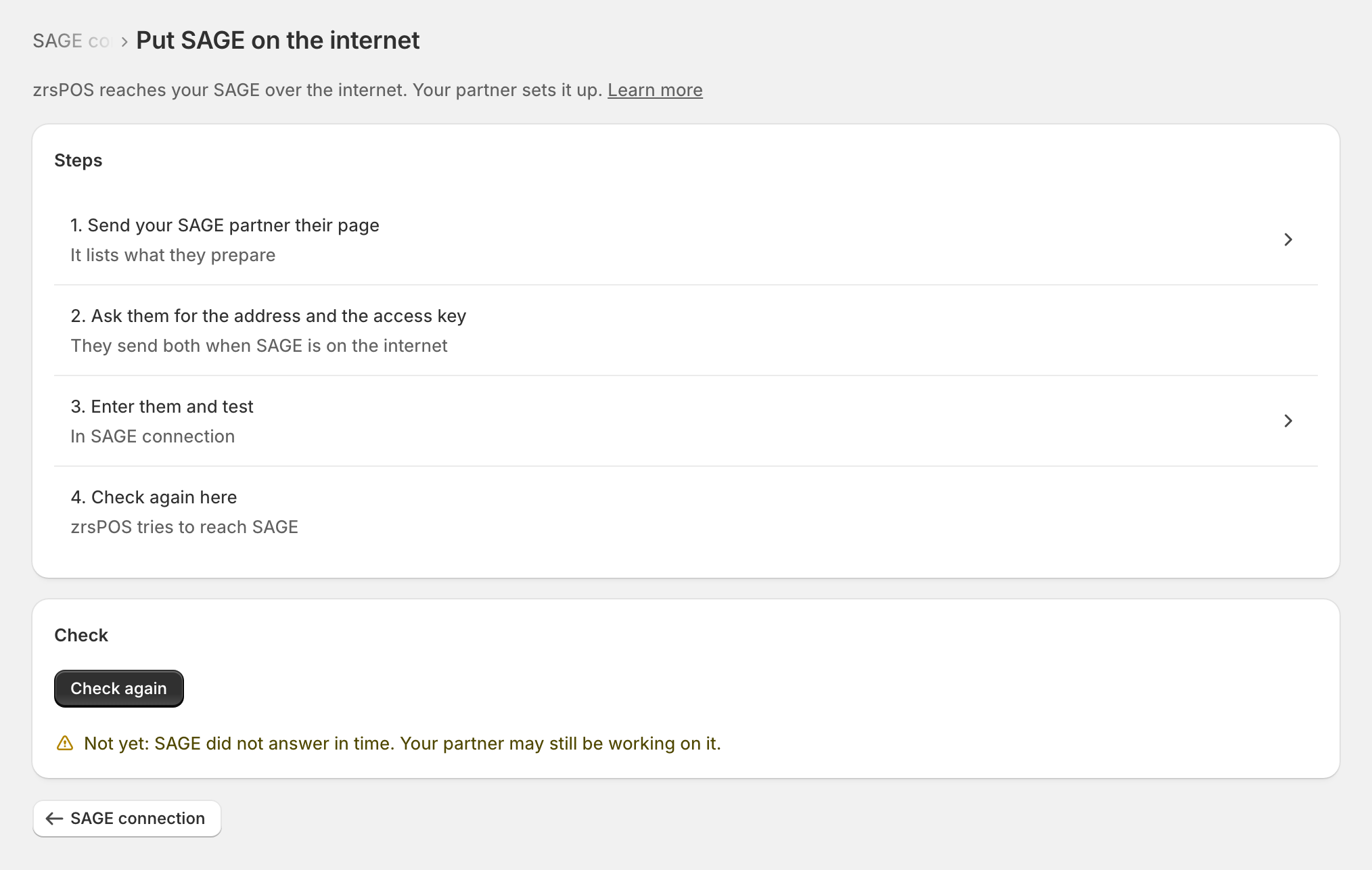
Check again runs the connection test. It answers "SAGE answered. This is done." or "Not yet: … Your partner may still be working on it."
A SAGE your partner hosts
Some SAGE partners run the SmartAPI for you on an https address of their own. That works the same way: save their address and port, and the key. On such hosts the page where the SmartAPI describes its functions sits behind a redirect to the same address; zrsPOS follows it there, and only there. See SAGE functions and licence.
Edge cases
- "Not yet: no SAGE address and key are saved yet." Enter both in SAGE connection first.
- An address on your shop's network (192.168…, 10.…) is refused: "This address only works inside your shop". zrsPOS only reaches public addresses.
- A redirect (http to https, or to another name) is refused when you save: save the final address. Documents never follow a redirect.
- http instead of https works, but the page warns it is not secure: the key and documents cross the internet unencrypted.
- A new public IP (router change, provider change) breaks a static-IP address: SAGE stops answering until the address is updated. A DDNS name avoids it.
- Still failing? Each cause has its own page: see When the connection test fails. Write to support@zrspos.com with the address (never the key) and the title the page shows.
More in SAGE
- SAGE and your SAGE partner
- Connect zrsPOS to your SAGE
- Test the connection
- When the connection test fails
- SAGE functions and licence
- Your company and the lists read from SAGE
- Change SAGE company
- Register a série with the AT
- Repair a numbering chain
- SAGE items
- Custom-sale items
- Island VAT items
- Refund and shipping items
- Barcodes
- Payment methods
- Default SAGE payment method and what counts as cash
- Store credit as a voucher: a voucher for each store
- Payments on returns and online orders