 zrsPOS
Printers the print app can use
The printers zrsPOS Print can drive: a SUNMI's built-in printer, a Bluetooth printer, a printer on the tablet's network, and USB.
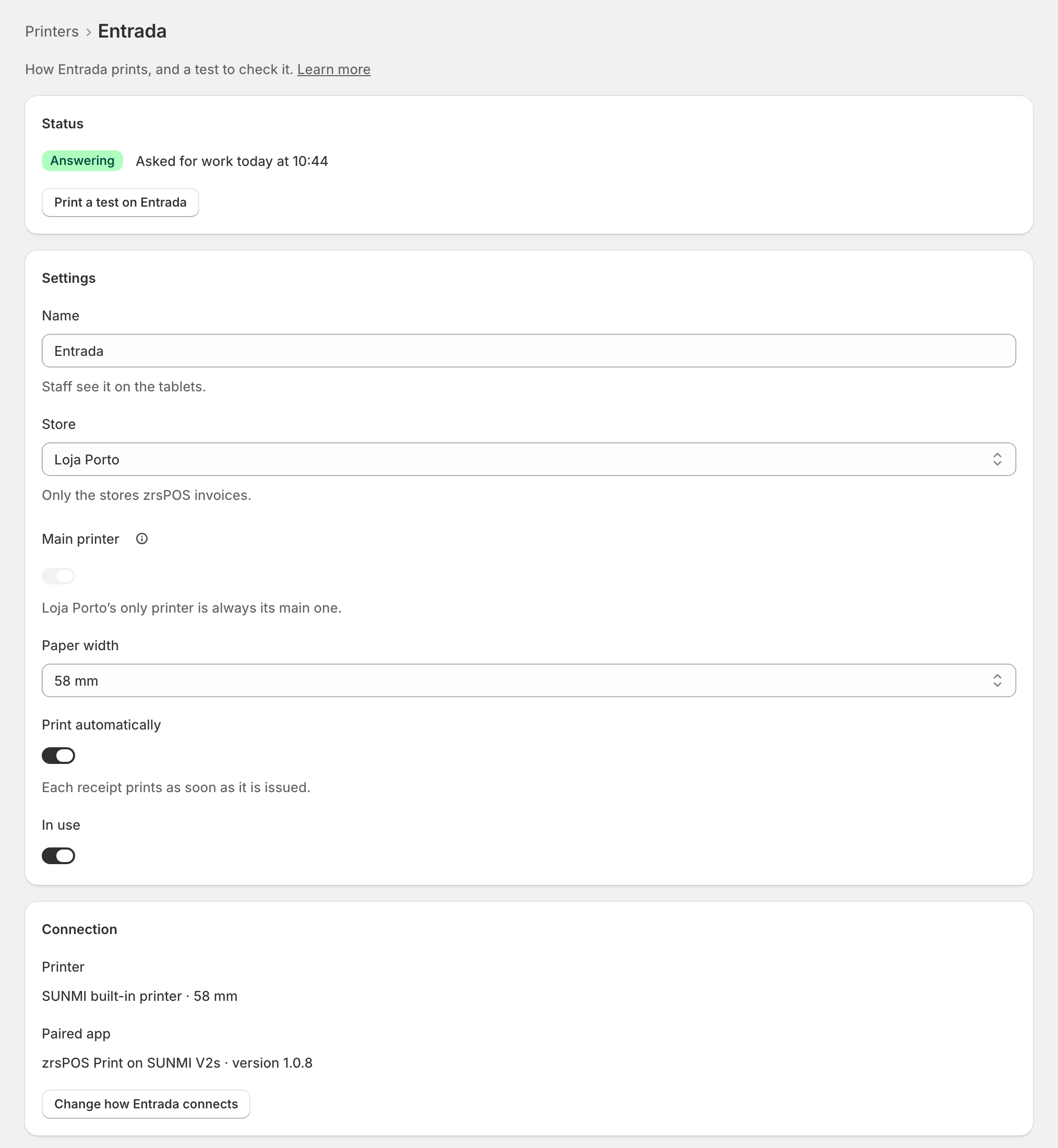
zrsPOS Print prints on whatever printer the tablet has. It registers each one in zrsPOS by itself.
- The printer built into a SUNMI: below.
- A Bluetooth printer paired with the tablet: zrsPOS Print 1.0.9 or later. Below.
- A printer on the same network that accepts ESC/POS on port 9100: below.
- A USB printer, or a printer that charges the tablet: see USB printers and the print app.
A SUNMI's built-in printer
Any SUNMI Android tablet or terminal with a built-in printer works: the app goes through SUNMI's own printer service, so it reads the real paper width and never guesses.
| Model | Typical paper |
|---|---|
| T2, T2s | 80 mm |
| T2 mini | 80 mm or 58 mm, as ordered |
| T3 | 80 mm |
| D2 mini, D3 mini | 58 mm |
| V2s, V2 Pro | 58 mm |
A Bluetooth printer
- Pair the printer first, in Android Settings → Bluetooth, as for any Bluetooth accessory. The app uses the printers already paired; it does not search.
- Open zrsPOS Print. If it shows Allow Bluetooth (nearby devices), press it and allow.
- The printer appears in the app's list and in zrsPOS. Press Local test print, then Print a test on … on the printer's page in zrsPOS.
Under the printer list, the app says what it sees over Bluetooth: the paired printers, not allowed, off, or no paired printer.
A printer on the tablet's network
Under Printer on the network (Wi-Fi), type the printer's address (for example 192.168.1.50) and press Add, or press Search the network. The printer must be on the same Wi-Fi as the tablet.
Edge cases
- Bluetooth receipts fail now and then: most receipt printers take one Bluetooth connection at a time. Do not share the printer with another tablet, or with Shopify POS's own Bluetooth printing. If Shopify POS needs it too, connect it to Shopify by network or USB.
- The app keeps the Bluetooth link open between receipts and closes it after 5 idle minutes; the next receipt opens it again.
- Bluetooth: not allowed: press Allow Bluetooth (nearby devices). If Android no longer asks, the app explains: under Permissions, open "Nearby devices" and allow.
- Bluetooth: off: turn Bluetooth on in Android's quick settings.
- A SUNMI's printer is not found: the tablet has no built-in printer, or is not a SUNMI.
- A network printer that does not answer is added anyway; the app says so. Check it is on and on the same Wi-Fi.
- The receipt is too narrow or too wide: check Paper width on the printer's page in zrsPOS.
More in Printing
- Choose how to print
- Who prints?
- Set up a PrintBox
- The PrintBox's status page
- Swap or add a printer on a PrintBox
- Move, unlink or reset a PrintBox
- Set up the print app
- USB printers and the print app
- Keep the print app running
- An Epson that fetches receipts
- Add a printer
- A printer's page
- Printers and their status
- Receipts by e-mail
- Gift receipts
- Nothing prints: what to check