 zrsPOS
Swap or add a printer on a PrintBox
Add a second printer to a PrintBox, replace a broken one, or take one you no longer use off the box.
A PrintBox that already prints for your shop takes new printers without a new code. Everything here happens on the box's status page: join the PrintBox's Wi-Fi, go to http://192.168.8.1 and type the box password.
Add a printer
- Plug the printer into the box (USB, or the box's LAN port) and switch it on.
- Within about three minutes the box finds the printer by itself and tells zrsPOS. To do it at once, press Scan for printers on the status page.
- In zrsPOS, the printer appears in Settings › Printing & delivery › Printers with a page of its own. Give it a name staff recognise, decide whether it is the store's Main printer, and print a test there. See A printer's page.
Remove a printer you no longer use
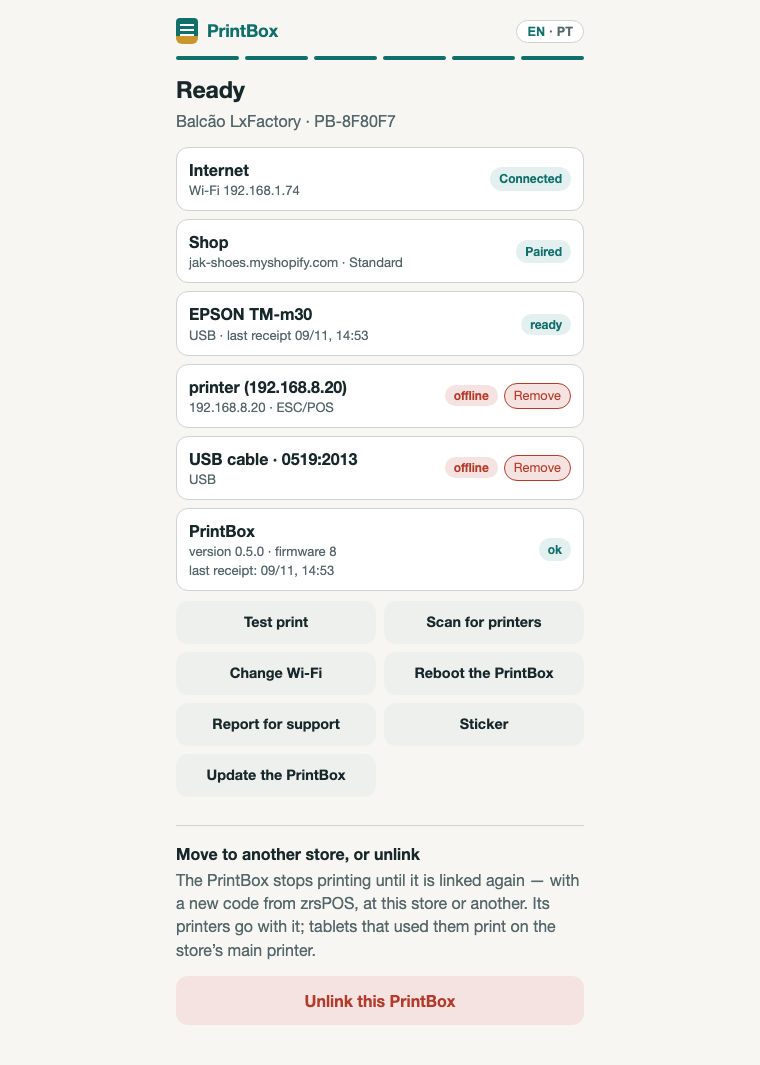
- Unplug the printer, or switch it off. On the status page it shows offline, with Remove next to it.
- Press Remove and confirm.
- The printer leaves the box and zrsPOS. Tablets that printed on it print on the store's main printer.
Replace a broken printer
- Unplug the old printer and plug in the new one.
- Press Scan for printers, then Remove next to the old one.
- In zrsPOS, check which printer is now the store's main printer, and give the new one a name.
Edge cases
- It is still connected: a printer that is plugged in and on cannot be removed, because it would come straight back. Unplug it or switch it off first.
- No contact with zrsPOS — nothing was removed: removing a printer needs the box online. Try again when it has internet.
- A network printer switched off at night shows offline but stays listed. Leave it: it comes back when it is switched on. Remove only a printer you will not use again.
- A printer you removed, plugged in or switched on again, comes back by itself within about three minutes, with a new page in zrsPOS.
- The store's only printer: once it is removed, the store has no printer and its tablets print nothing until you add one.
- Deleting the printer in zrsPOS instead, on its page: its waiting receipts are dropped, and the PrintBox does not add it again. To bring it back, pair the box again with a new code.
- Two printers on one box: each has its own page in zrsPOS and its own line on the status page. Tablets print on the one chosen for them, or on the main printer.
More in Printing
- Choose how to print
- Who prints?
- Set up a PrintBox
- The PrintBox's status page
- Move, unlink or reset a PrintBox
- Set up the print app
- Printers the print app can use
- USB printers and the print app
- Keep the print app running
- An Epson that fetches receipts
- Add a printer
- A printer's page
- Printers and their status
- Receipts by e-mail
- Gift receipts
- Nothing prints: what to check