 zrsPOS
Set up the print app
Install zrsPOS Print on a SUNMI or Android tablet and pair it with your shop.
zrsPOS Print is a small Android app that turns the tablet into the printer's server. It runs in the background, asks zrsPOS for receipts every few seconds and prints them on the tablet's printer. Nothing is exposed to the internet and the store router is untouched.
It is for special cases: the printer built into a SUNMI, a Bluetooth printer, or a printer that charges the tablet. For an ordinary receipt printer with a USB cable, use a PrintBox: Choose how to print.
You need Android 7.0 or later, and internet on the tablet.
Install it
The app is not on Google Play.
- On the tablet, open a browser and go to
zrspos.com/downloads. - Press Download APK. The page always serves the newest version.
- Open the downloaded file. Android asks whether to allow installing apps from this source: allow it, then press Install. On SUNMI tablets this is usually allowed already.
- Open zrsPOS Print from the app list. The pairing screen appears.
Make a code in zrsPOS
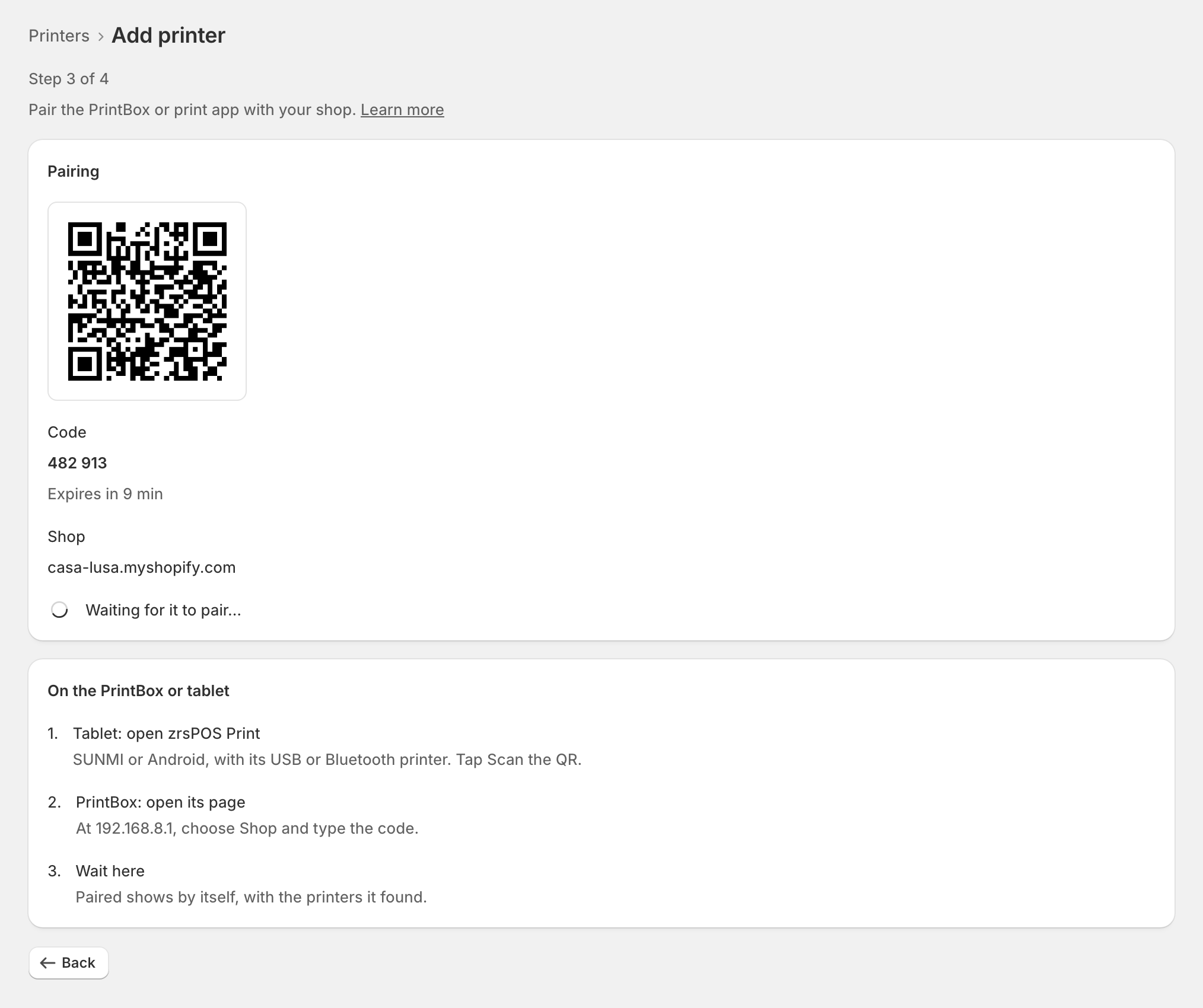
- In the Shopify admin, open zrsPOS → Settings › Printing & delivery › Printers and press Add printer.
- Under How it gets receipts, choose zrsPOS PrintBox or print app and press Next.
- Choose the store and a name, then press Next: pairing code. A QR code and a 6-digit code appear. The code works once, for 10 minutes; the page counts down and offers a new one when it runs out.
Pair the tablet
- In zrsPOS Print, press Scan the QR and point the camera at the code. The store and the code fill in by themselves. Or type them: the store (
yourshop.myshopify.com) and the 6-digit code. - Name of this device is optional: "Counter 1", say.
- Press Pair.
The app says Paired ✓ — n printer(s) registered. In zrsPOS, Paired shows by itself within seconds, with the printers it found. Press Next: test print and print a test.
Then do one more thing on the tablet: press Allow running in the background (battery) if the app shows it. See Keep the print app running.
Edge cases
- Invalid or expired code: make a new one on the same page in zrsPOS. Each code works once.
- No printer found after pairing: the app is paired, and finds the printer by itself once it is connected. See Printers the print app can use.
- A SUNMI: the app asks the tablet for its model and paper width when it pairs; you do not tell zrsPOS which one you have.
- The pairing is refused while the shop prints from SAGE or e-mail only: set Who prints? to zrsPOS prints first.
- Shopify POS on the same tablet: fine. The app runs beside it, in the background.
More in Printing
- Choose how to print
- Who prints?
- Set up a PrintBox
- The PrintBox's status page
- Swap or add a printer on a PrintBox
- Move, unlink or reset a PrintBox
- Printers the print app can use
- USB printers and the print app
- Keep the print app running
- An Epson that fetches receipts
- Add a printer
- A printer's page
- Printers and their status
- Receipts by e-mail
- Gift receipts
- Nothing prints: what to check