 zrsPOS
A printer's page
A printer's own page in zrsPOS: its status and test, main printer, paper width, how it connects, unpairing and deleting.
Open a printer from Settings › Printing & delivery › Printers. Its page holds its status, a test, and its settings.
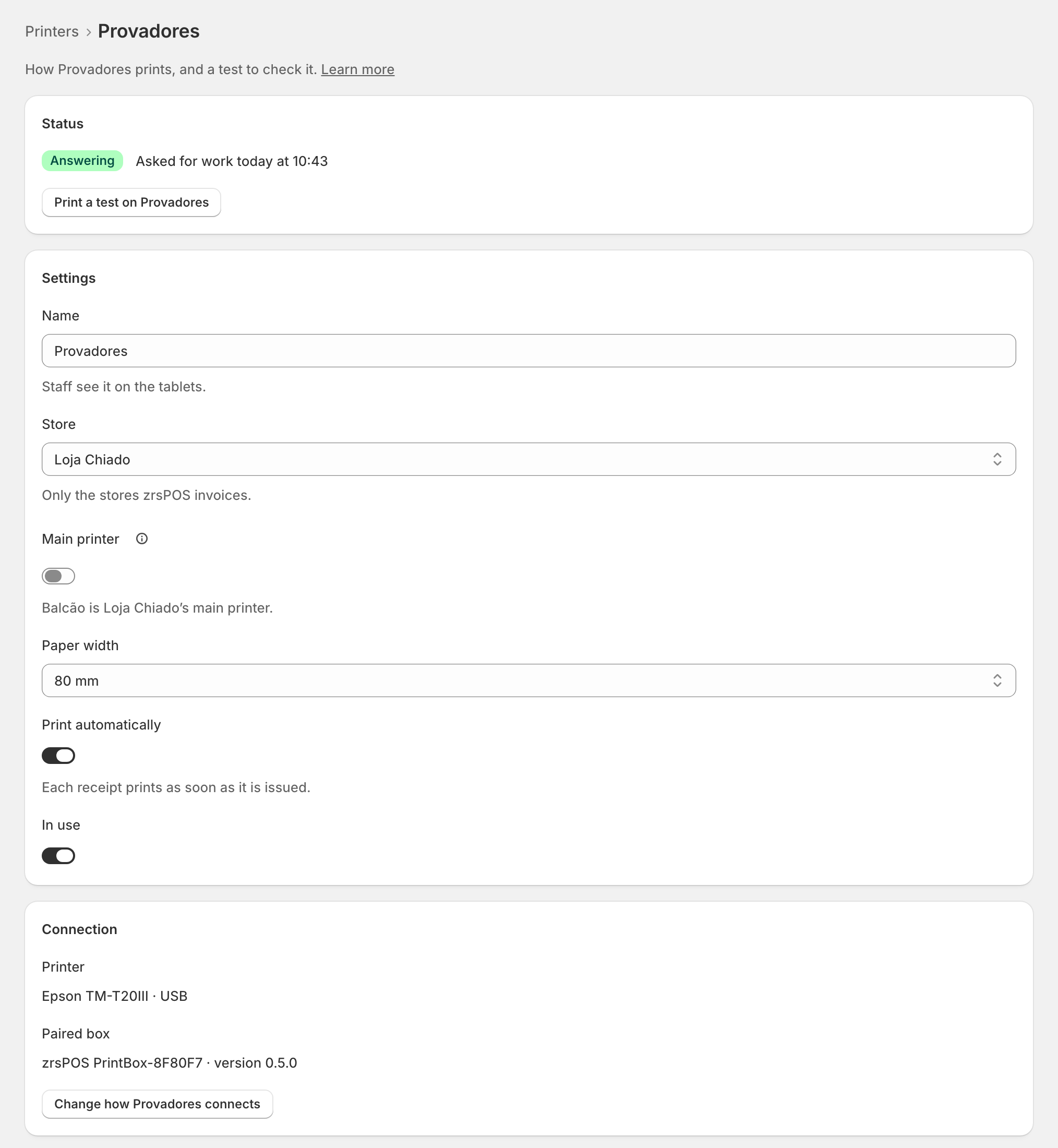
Status and test
The status at the top is the same one shown in the list, on Home and at the till: see Printers and their status. Press Print a test on … to check it. The test works on a read-only plan too.
Settings
- Name: what staff see on the tablets.
- Store: moving it to another store says which printer takes over at the old one.
- Main printer: prints for the store's tablets that have no printer chosen.
- Paper width: 80 or 58 mm. The width is yours: the print app reports the width it finds but never changes your choice; when they differ, the page says so.
- Print automatically: each receipt prints as soon as it is issued. Off, receipts print only when staff tap Print.
- In use: off, it prints nothing and keeps its settings; its tablets print on another printer.
Connection
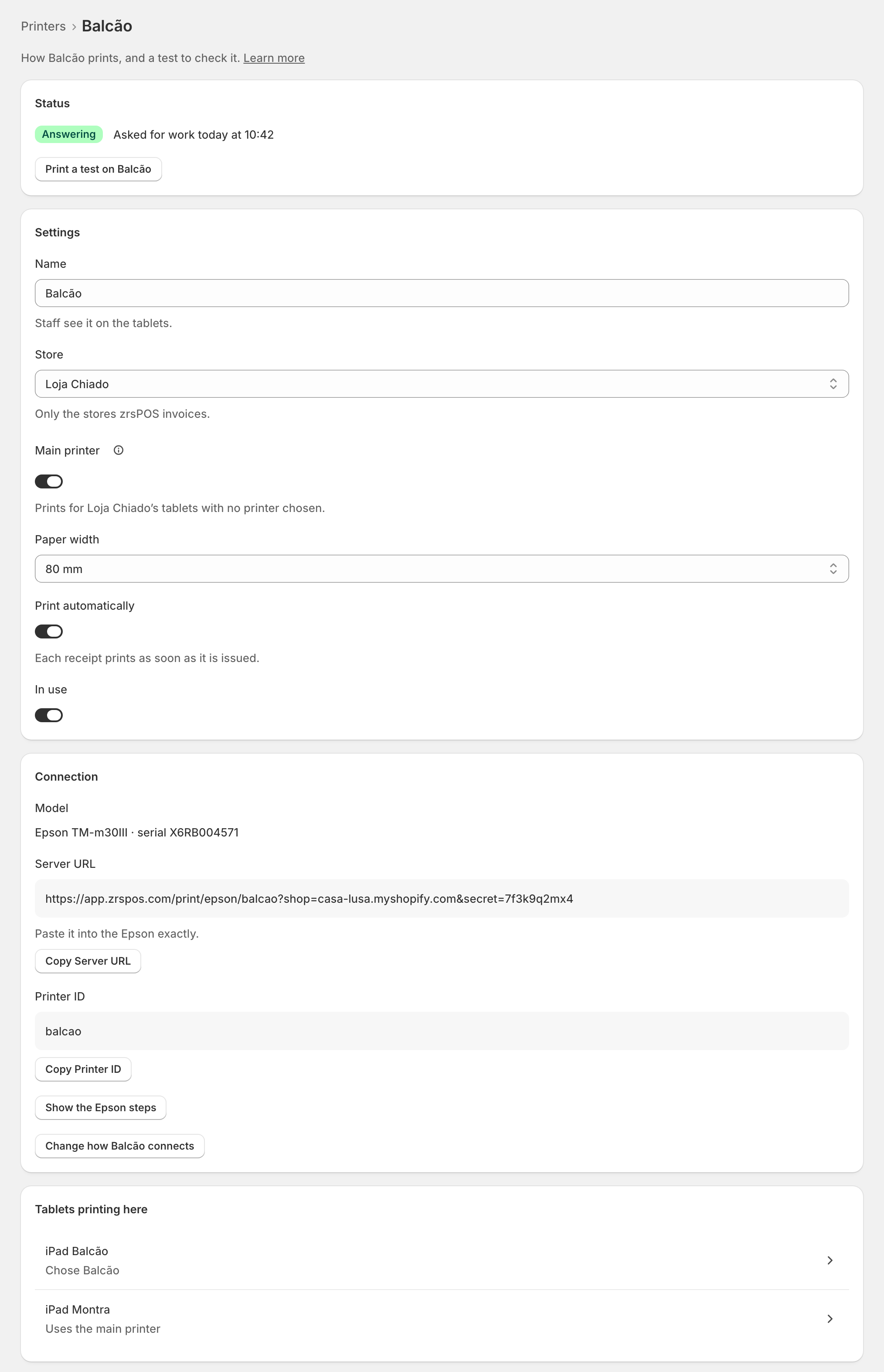
- Connection: the paired PrintBox or print app and its version (the page says when a newer one is out), the Epson's URL and ID, or the direct printer's address and port.
- Change how … connects runs the Add printer task again for this printer. It keeps its store and name. Switched to a new PrintBox or print app, the new printer takes this one's place, and this one is kept, not in use.
- Asking for work (print app and PrintBox): How often it asks, from every second to every 30 seconds.
- Tablets printing here: each opens its own page under Stores. See The tablets.
Unpair or delete
- Unpair … (print app or PrintBox): it signs out and stops printing here, for good: it never comes back by itself. Its printers stay saved, not in use. To print with it again, pair it again with a new code.
- Delete …: its waiting receipts are dropped, and its tablets print on the store's main printer. A PrintBox or print app does not add it again; an Epson needs a new URL.
Edge cases
- On a live shop, moving a printer, stopping it, turning off automatic printing or changing the main printer asks first. The name, paper width and how often it asks just save.
- The store's only printer is always its main one. Stop or delete it and the store has no printer: its tablets print nothing.
- A printer at a store zrsPOS doesn't invoice: nothing prints on it. Move it to a store that sells at a till, or delete it.
- Printer not found: someone deleted it on another screen, or the link is old.
- zrsPOS prints nothing: the page says so; the printer stays saved, and a test prints again once zrsPOS prints.
- Paper width differs from what the printer found: check the roll and choose the right width. See the problem page.
More in Printing
- Choose how to print
- Who prints?
- Set up a PrintBox
- The PrintBox's status page
- Swap or add a printer on a PrintBox
- Move, unlink or reset a PrintBox
- Set up the print app
- Printers the print app can use
- USB printers and the print app
- Keep the print app running
- An Epson that fetches receipts
- Add a printer
- Printers and their status
- Receipts by e-mail
- Gift receipts
- Nothing prints: what to check