 zrsPOS
The PrintBox's status page
What the PrintBox's status page shows, and the buttons you use day to day.
Once the PrintBox prints, you never need to touch it. To look at it, join the PrintBox's Wi-Fi (its name is on the sticker), go to http://192.168.8.1 and type the box password.
What it shows
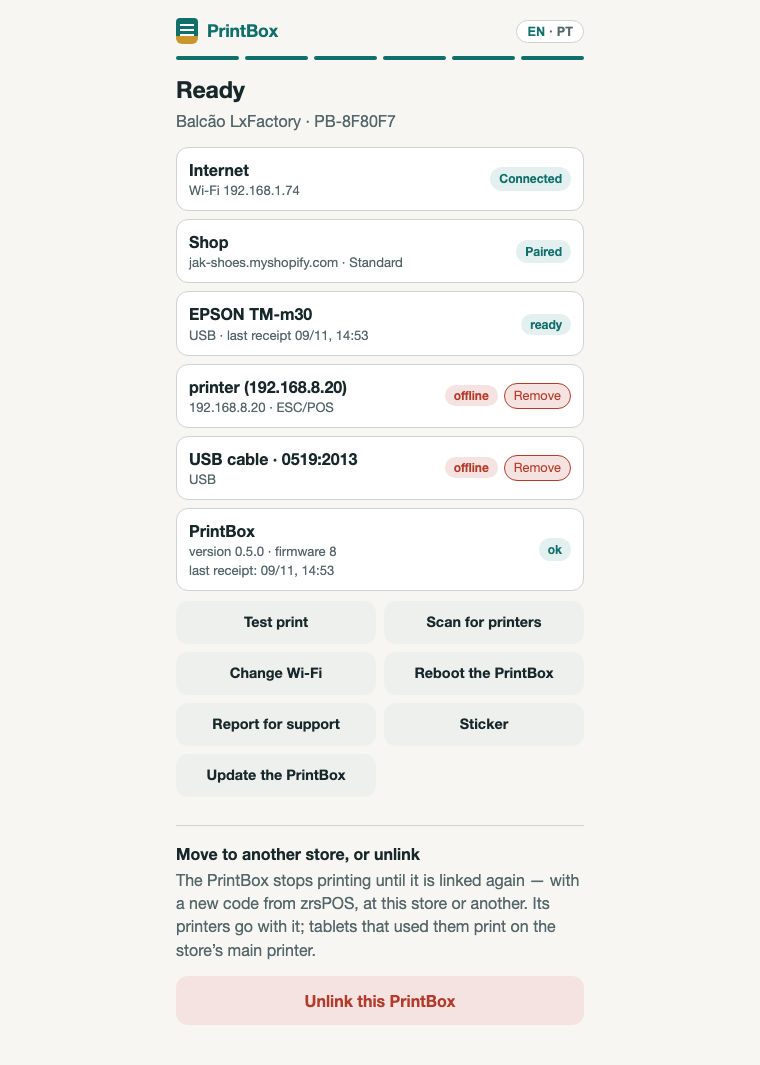
- Internet: cable or Wi-Fi, and whether it is connected.
- Shop: the shop it prints for.
- One line per printer: ready, offline, no paper or cover open, with the time of the last receipt.
- PrintBox: its version, the last receipt, and the last error when it is newer than the last receipt.
The buttons
- Test print: a test line straight from the box to the printer, without zrsPOS. It proves the cable and the printer. To test the whole way, print a test on the printer's page in zrsPOS.
- Scan for printers: after you connect another printer. The box finds it and tells zrsPOS.
- Change Wi-Fi: a new router, or a fair on a phone hotspot. The box remembers earlier networks.
- Reboot the PrintBox: it is back in about a minute.
- Update the PrintBox: installs the newest zrsPOS software on the box. The printer's page in zrsPOS says when a newer version is out.
- Report for support: a text with the box's state (no passwords), to e-mail or copy to support@zrspos.com.
- Sticker: prints the box's sticker again.
- Remove: next to a printer that is unplugged or switched off. See Swap or add a printer on a PrintBox.
- At the bottom, apart, under Move to another store, or unlink: Unlink this PrintBox. See Move, unlink or reset a PrintBox.
Edge cases
- A printer shows offline: the box stopped seeing it. Check its cable and power; a network printer may have changed address, so press Scan for printers. A network printer switched off for the night stays listed, offline, and comes back when it is switched on.
- No internet: receipts wait in zrsPOS and print once the box is back online, if that is within 4 hours.
- Not linked to a shop at the top: the box prints for nobody. Press Link to a shop and pair it with a new code.
- revoked — pair again next to the shop: it was unpaired in zrsPOS. Pair it again with a new code.
- Server: staging/test in red: the box is not on the live zrsPOS and prints nothing for your shop. Write to support@zrspos.com.
- Nobody knows the box password: only a factory reset gets you back in. See Move, unlink or reset a PrintBox.
- You cannot reach 192.168.8.1: make sure the phone or laptop is on the PrintBox's own Wi-Fi, not the shop's.
More in Printing
- Choose how to print
- Who prints?
- Set up a PrintBox
- Swap or add a printer on a PrintBox
- Move, unlink or reset a PrintBox
- Set up the print app
- Printers the print app can use
- USB printers and the print app
- Keep the print app running
- An Epson that fetches receipts
- Add a printer
- A printer's page
- Printers and their status
- Receipts by e-mail
- Gift receipts
- Nothing prints: what to check