 zrsPOS
Set up a PrintBox
Set up a zrsPOS PrintBox from a phone or laptop, with the receipt printer on its USB cable.
The zrsPOS PrintBox is a small box that connects the store's receipt printer to zrsPOS: no computer, and no ports opened on the router. You set it up from a phone or laptop in about ten minutes; then it prints by itself.
In the box: the PrintBox, its power cable (micro-USB; any phone charger will do) and a network cable.
1. Open the PrintBox's page
- Plug the PrintBox into power. Wait about a minute, until the light is steady.
- On a phone or laptop, join the Wi-Fi network called zrsPOS PrintBox- followed by the serial number. The password is on the label under the box.
- Go to http://192.168.8.1. The page opens in Portuguese; the EN button in the corner switches to English. Press Start.
2. The four steps on the box
- PrintBox password: it protects this page. At least 10 characters. Keep it: you type it each time you open the page.
- Connect to the internet: Network cable from the shop router to the box's WAN port, Shop Wi-Fi (pick your network, type its password), or Phone (a hotspot, for fairs and pop-ups). The box shows Connected when it reaches zrsPOS.
- Connect the printer: plug the printer into the box's USB port and switch it on. It appears in the list by itself. Press Print a test line and check that paper comes out.
- Connect to the shop: type the shop (
yourshop.myshopify.com) and the 6-digit code from zrsPOS (below), then press Pair.
3. The code, in zrsPOS
In the Shopify admin, open zrsPOS → Settings › Printing & delivery › Printers:
Press Add printer, choose zrsPOS PrintBox or print app and press Next.
Choose the store, give the printer a name staff recognise ("Counter 1") and press Next: pairing code.
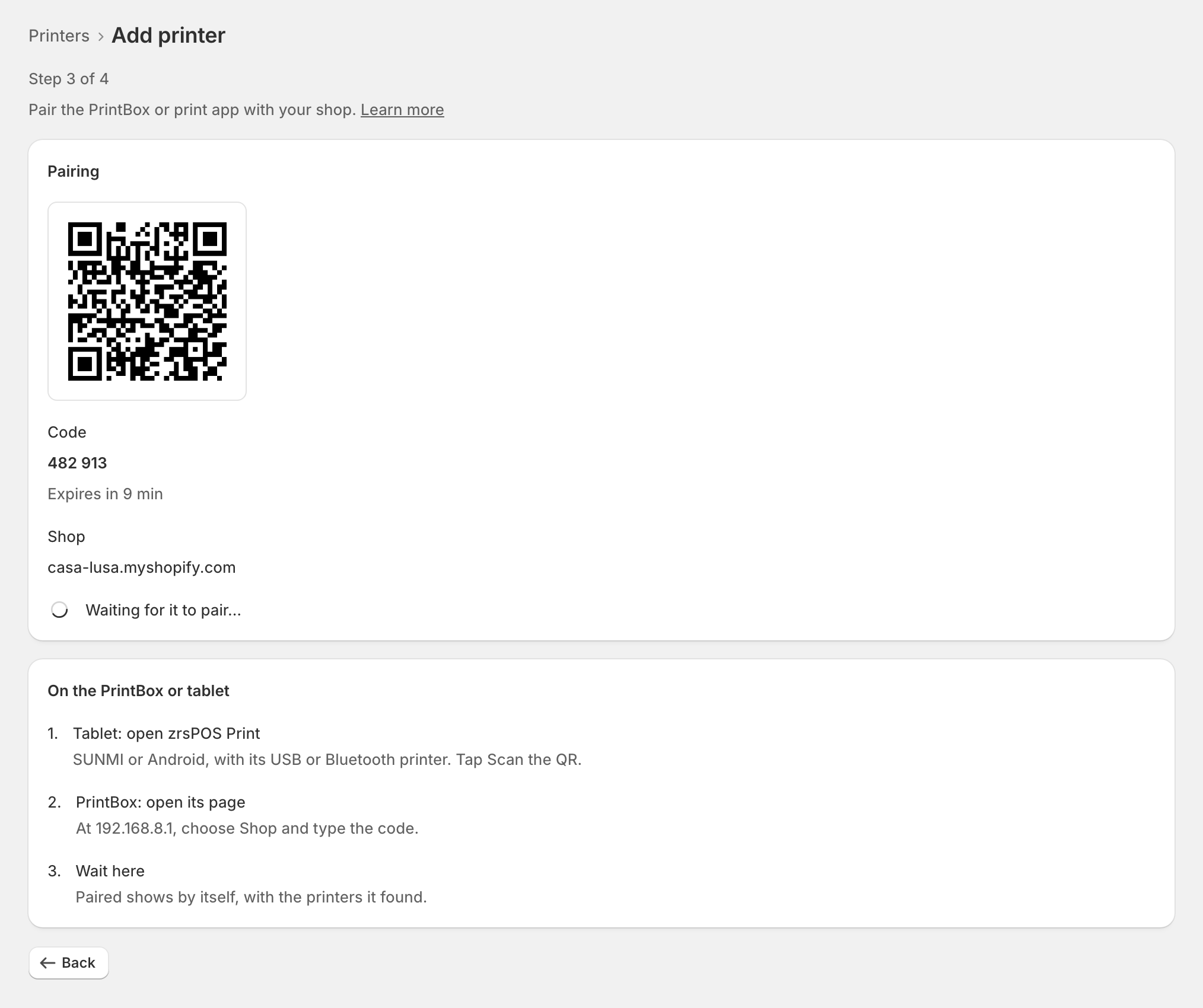
Type the code into the box within 10 minutes. In zrsPOS, Paired shows by itself, with the printers the box found.
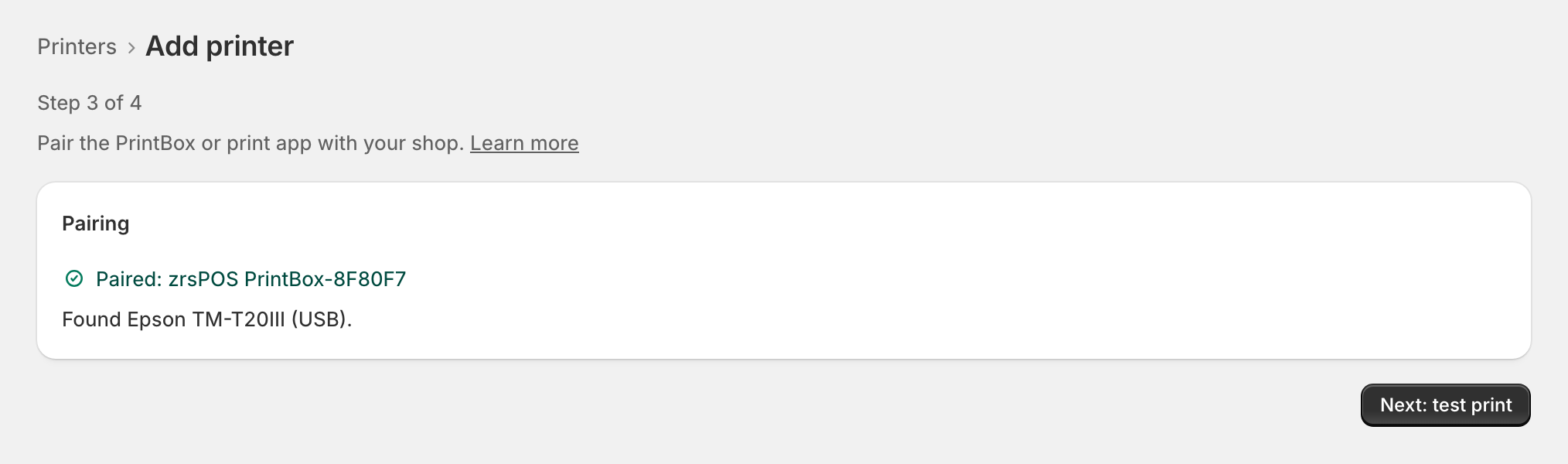
Press Next: test print and print a test. It goes the whole way: zrsPOS, the box, the printer.
4. Finish
The box shows Ready: internet, shop, printers and box version. Press Sticker, print it and stick it on the box: it holds the box's Wi-Fi and a space to write the password.
The store's tablets print on its main printer unless a tablet chooses another, in the zrsPOS tile under Printer. See The tablets.
Edge cases
- Invalid or expired code: a code lasts 10 minutes and works once. Make another in zrsPOS.
- Connect a printer before pairing: the box will not pair with no printer. Plug it in and switch it on.
- This shop prints from SAGE: pairing is refused while zrsPOS does not print. Set Who prints? to zrsPOS prints.
- The shop Wi-Fi is not in the list: the box uses 2.4 GHz networks only, and marks the others 5 GHz only — not compatible. Turn on the router's 2.4 GHz network, or use the cable. On an iPhone hotspot, turn on "Maximise compatibility".
- On the network, but no internet: check the shop router.
- Your phone drops off the box's Wi-Fi while the box joins the shop Wi-Fi: normal, for up to a minute. Join the box's Wi-Fi again; the page carries on by itself.
- A network printer instead of USB: plug it into the box's LAN port. An Epson with a Wi-Fi dongle: remove the dongle, or the printer's network port stays off.
- The box was used before, or reset: see Move, unlink or reset a PrintBox.
More in Printing
- Choose how to print
- Who prints?
- The PrintBox's status page
- Swap or add a printer on a PrintBox
- Move, unlink or reset a PrintBox
- Set up the print app
- Printers the print app can use
- USB printers and the print app
- Keep the print app running
- An Epson that fetches receipts
- Add a printer
- A printer's page
- Printers and their status
- Receipts by e-mail
- Gift receipts
- Nothing prints: what to check