 zrsPOS
Tax Free (Global Blue)
For stores that sell to travellers from outside the EU. Every plan includes it; it needs your own contract with Global Blue, a desk for each store, a printer for the forms and a tablet at the counter running the zrsTaxFree app. Everything Tax Free is in one place: Settings › Tax Free.
We sell Tax Free is the switch everything depends on. Turning it on or off asks first.
- Off: sales are invoiced with VAT, no tablet issues a form, and the POS Tax Free tile says it is off. Your setup stays saved, and the forms issued while it was on stay reachable under Forms issued while on.
- On: the till offers Tax Free at each store once that store is ready: it has a desk, a Global Blue login (its own or the account's) and the SAGE codes for its VAT zone. Turning it on before the setup is finished is fine: a store that is not ready simply doesn't offer Tax Free yet, and its row says what it still needs.
The page then shows five rows: the Global Blue account, the desks and the SAGE codes (Setup), the tablets and the forms issued (Use). A row that needs you opens the exact field to fix.
On a read-only plan you can still turn Tax Free off, unpair a tablet, remove a login and void a form; everything else waits until the plan is in good standing again.
The Global Blue account
The IC2 Integra login Global Blue gave you: Environment (Test or Production), Username, Password and the Sender ID agreed with your Global Blue project manager. The password is stored encrypted and never shown again; Change password replaces it. The Global Blue page theme is only needed if Global Blue gave you one.
This login is used by every store that has no login of its own; the page lists those stores. Keep Test until Global Blue confirms your go-live: switching to Production asks first, because from the next form the forms are real and travellers claim their VAT back. On a shop that already issues documents, the test environment is a problem (its forms are not real); before go-live it is just a fact.
Test the login asks Global Blue for a session with the saved login and keeps the result: accepted (with when), refused (with Global Blue's own words) or no answer within 20 seconds. Saving a changed login clears the last result, so test again after a save.
Remove the account login forgets the username and password. It is refused while Tax Free forms that are not voided belong to stores signing in with it: a refund voids them with that login. Remove it once they are voided, or give those stores a login of their own.
Desks
Global Blue knows each store by its Shop ID and Desk ID. Desks lists one row for every store zrsPOS invoices, and no other: there is nothing to add, and there is no "All stores" desk. Stores zrsPOS does not invoice are named once under the list.
Open a store's desk and type its Shop ID (on your Global Blue contract or portal). The Desk ID can stay empty: Global Blue sends it with the first form. Signs in with chooses the account login or the store's own login (its username and password from the Global Blue portal). Test the desk tests the login that store signs in with.
A store without a desk shows Needs attention while Tax Free is on: its Tax Free sales can't get a form, so the till does not offer Tax Free there. Shops that had one desk for "All stores" before got a copy of it at each invoiced store; each copy says so until it is tested or saved. The old desk is kept only so that forms issued before can still be voided and reprinted.
A form is voided with the Shop ID and the login it was issued with. While forms issued at a store are not voided, zrsPOS refuses to change that store's Shop ID, to switch it to the account login, to remove its own login or to remove its desk — and says why. Change them once the forms are voided.
SAGE codes for Tax Free
A Tax Free invoice follows the Portuguese security-deposit model: the goods go on a VAT-exempt group and one more line carries the deposit Global Blue refunds to the traveller. zrsPOS needs three things, all checked in your SAGE:
- Deposit line · SAGE item: a non-stock item at 0 % VAT, exempt. The search lists your SAGE items that fit and greys out the ones that can't be used, with why (tracks stock, not at 0 %, inactive). When one of yours fits, zrsPOS offers it; when none does, Create “Caução e-taxfree” in SAGE creates one (it asks first, shows each step, then reads it back from SAGE before it saves it).
- VAT-exempt group: only the groups SAGE accepts as exempt on a document are listed, each with its exemption. If your SAGE has none, your SAGE partner creates one: the page links to the request on the page for your SAGE partner.
- VAT rate, per VAT zone: zrsPOS takes this VAT out of each sale price to get the exempt price. Each zone your stores are in has its own rate (mainland, Madeira, Azores); the zone's standard rate is offered with Use, never saved by itself, and zrsPOS never assumes 23 %. A missing rate is a problem at its field, and that zone's Tax Free sales wait.
A shop that was live before the exempt group was required keeps issuing its Tax Free sales as before, with each item's own VAT, until it chooses a group. The page says so at the group; until then the shop can't go live again after a pause.
After a change of SAGE company, the codes are read again in the new company and must be confirmed there (Confirm SAGE codes); Tax Free sales wait until then.
Tablets
The zrsTaxFree app issues the forms. It is a web app: nothing to download from a store, it installs from its link.
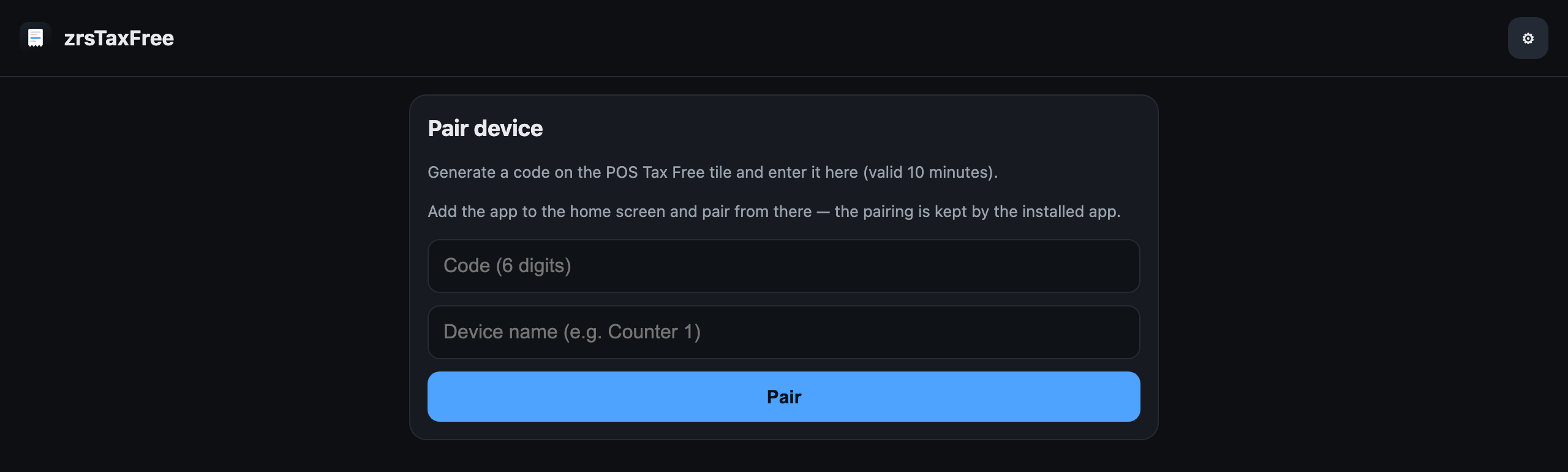
- On Tablets press Pair a tablet, choose the store and press Get a pairing code. Only stores that can issue are offered; if Tax Free is off, or the SAGE codes or a desk are missing, the sheet says so before you start. You get a QR code, its link and a 6-digit code valid once, for 10 minutes.
- Scan the QR with the tablet's camera, or open the link.
- Android (Chrome): open the browser menu (⋮) and choose Install app. iPad / iPhone (Safari): tap Share, then Add to Home Screen.
- Open the app from its icon, enter the code and give the tablet a name. The sheet shows "Paired" with that name as soon as the tablet pairs.
In the app, Settings shows the store and the Global Blue environment; choose the printer for the forms there (or the store's main printer, set in Printing & delivery). A tablet not seen for 6 months must pair again: its row needs attention. Unpair signs a lost or replaced tablet out (it asks first); a tablet unpaired on the tablet itself leaves the list too.
Forms issued
Every Global Blue form issued at your stores, newest first, with a void that was not done always at the top. Search by invoice, order, form number or traveller, filter by issued, voided or void not done, and Export the list. A form's page shows its invoice, traveller, the VAT back to the traveller, the desk, its Global Blue number and whether it printed.
Voiding a form
Refunding a Tax Free sale voids its form by itself, before the credit note is issued — whatever the plan says. You can also void a form from its page with Void this form: it asks first, because the invoice stays VAT-free, so only void if the traveller won't claim it.
- Global Blue did not answer: zrsPOS tries again every 15 minutes; the form says Void pending, and Try the void again asks at once.
- Global Blue refused: the form shows Global Blue's reason. A refusal is never retried: void the form in Global Blue's portal, then press Mark as voided at Global Blue on its page. That also closes the alert in Documents.
Problems on this page
Each one has a page that says what you see, what happened and what to do.
- SAGE refused the Tax Free VAT group
- The Tax Free VAT-exempt group is missing
- No Tax Free desk for this store
- No Tax Free tablet set up
- Global Blue test environment
- The SAGE codes for Tax Free are missing
- The store's VAT zone is not known yet
- Tax code not accepted
- The Tax Free form could not be voided
- Value-only refund on a Tax Free sale
- Tax Free sale with shipping
- Tax Free setup incomplete